Set Up New Users
This guide explains how to add a new user to CryspIQ® and assign the correct functional role.
User setup is usually completed by a Company Administrator or Data Administrator.
Before You Start
Before creating a user, confirm that:
- The user exists in your organisation’s Microsoft Entra ID.
- The user has been approved to access CryspIQ®.
- You know which CryspIQ® functional role the user requires.
- You understand whether the user also needs access to secured data.
Functional roles control what a user can do in CryspIQ®.
Data security controls what data the user can see.
Understanding User Access
CryspIQ® uses two layers of access control.
| Access Layer | Purpose | Example |
|---|---|---|
| Functional Role | Controls what screens and features the user can use. | Data Administrator, Data Steward, User |
| Data Security | Controls what data the user can access. | Security Groups, Contextual Security |
For example, a user may have access to the Query Library, but only see data they are permitted to access through security groups.
Functional Roles
Assign the role that matches the user’s responsibility.
| Role | Use this role when the user needs to... |
|---|---|
| Company Administrator | Manage company users and user access. |
| Data Administrator | Configure sources, mappings, security and operational setup. |
| Data Steward | Review and resolve data quality issues. |
| User | Search, query and consume trusted data. |
| Application User | Connect to CryspIQ® using system-to-system API access. |
Only assign administrator roles to users who are responsible for managing CryspIQ® configuration or access.
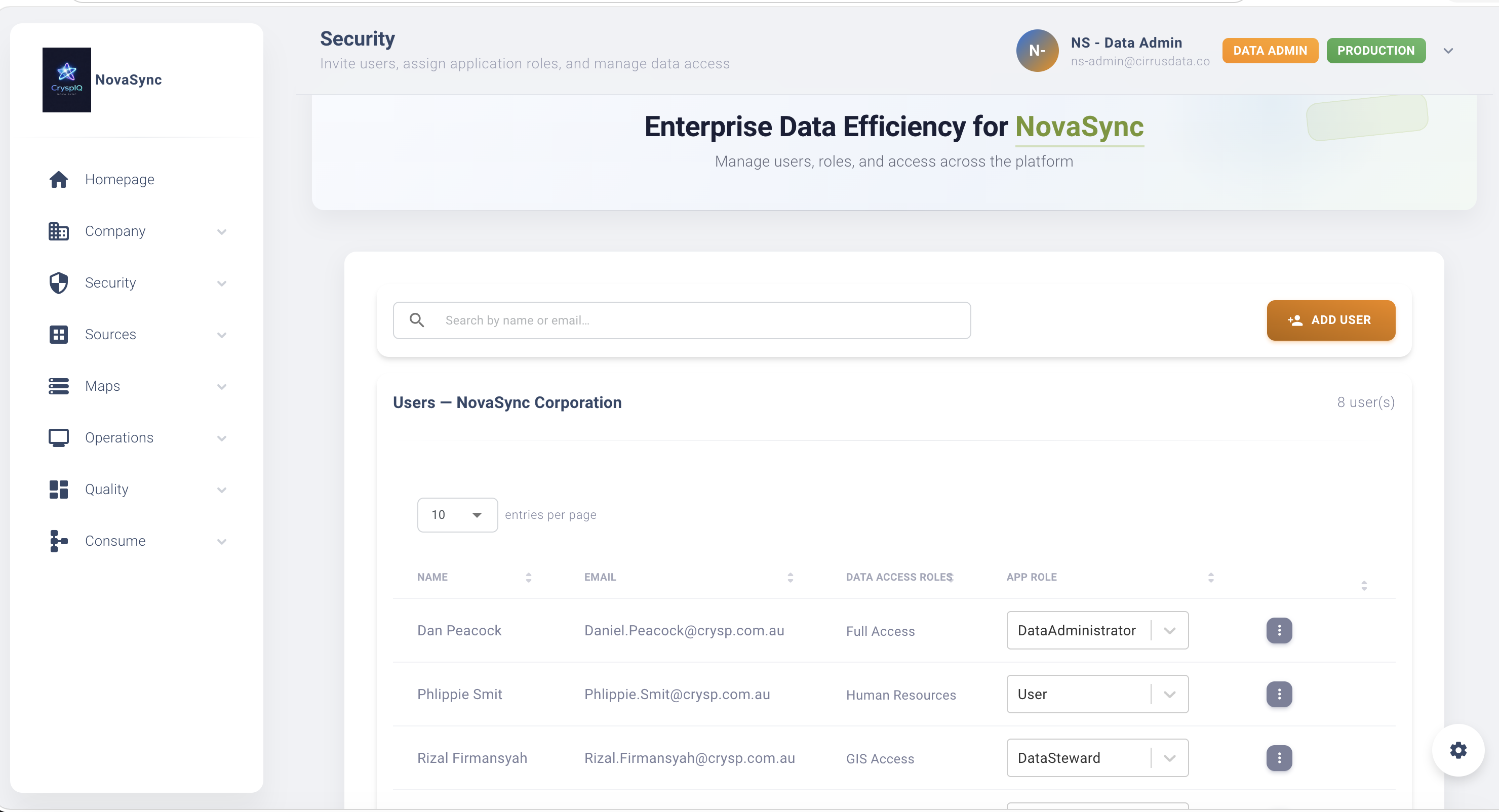
Navigate to User Management
From the main menu, go to:
Company → User Management
The User Management page shows the users who have access to CryspIQ®.
Add a New User
- Open Company → User Management.
- Select Add User.
- Enter the user’s details.
- Select the required functional role.
- Save the user.
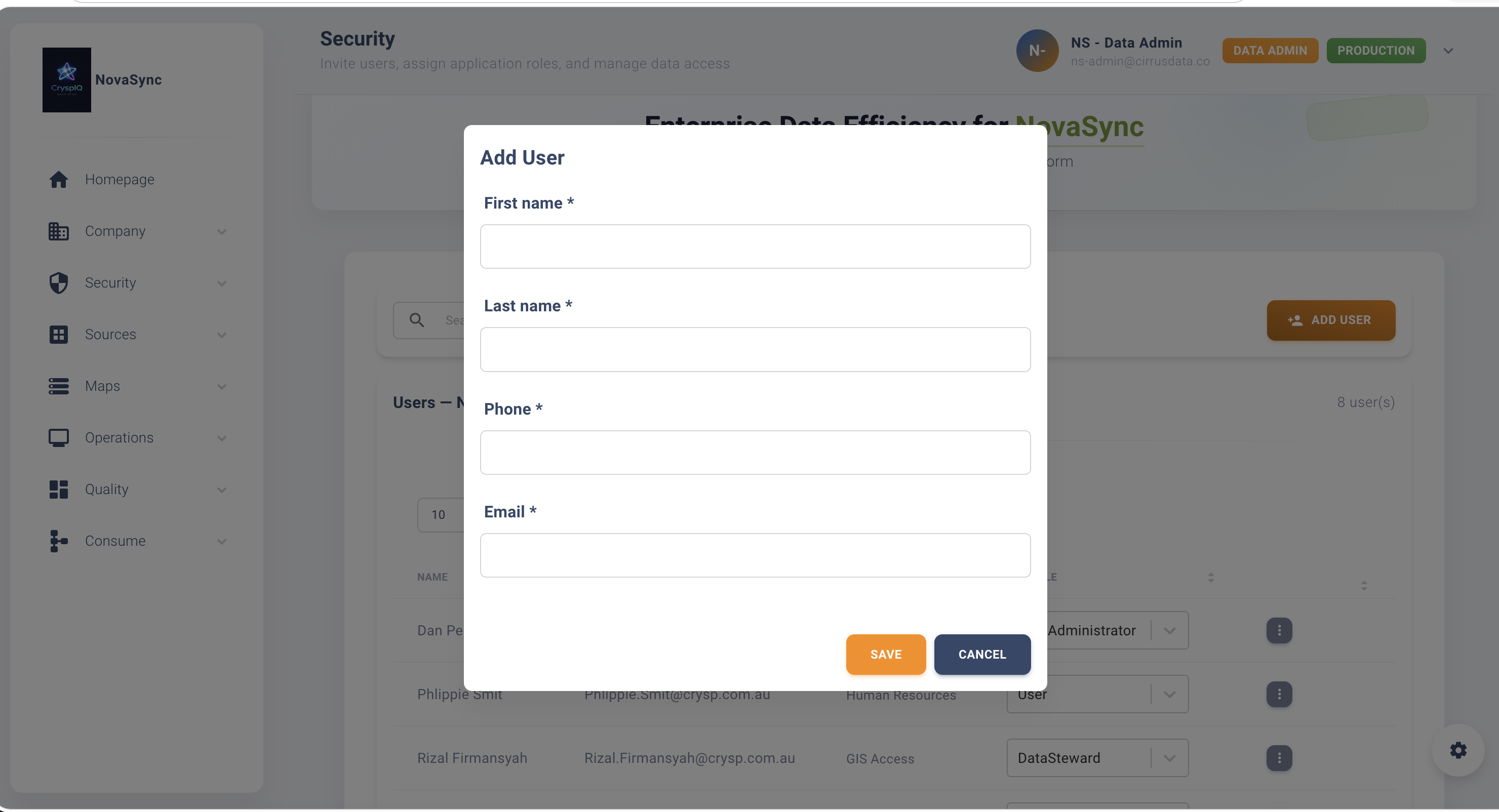
After saving, the user is added to CryspIQ® and can access the application according to the role assigned.
Assign a Functional Role
When creating or editing a user, choose the role that matches their responsibility.
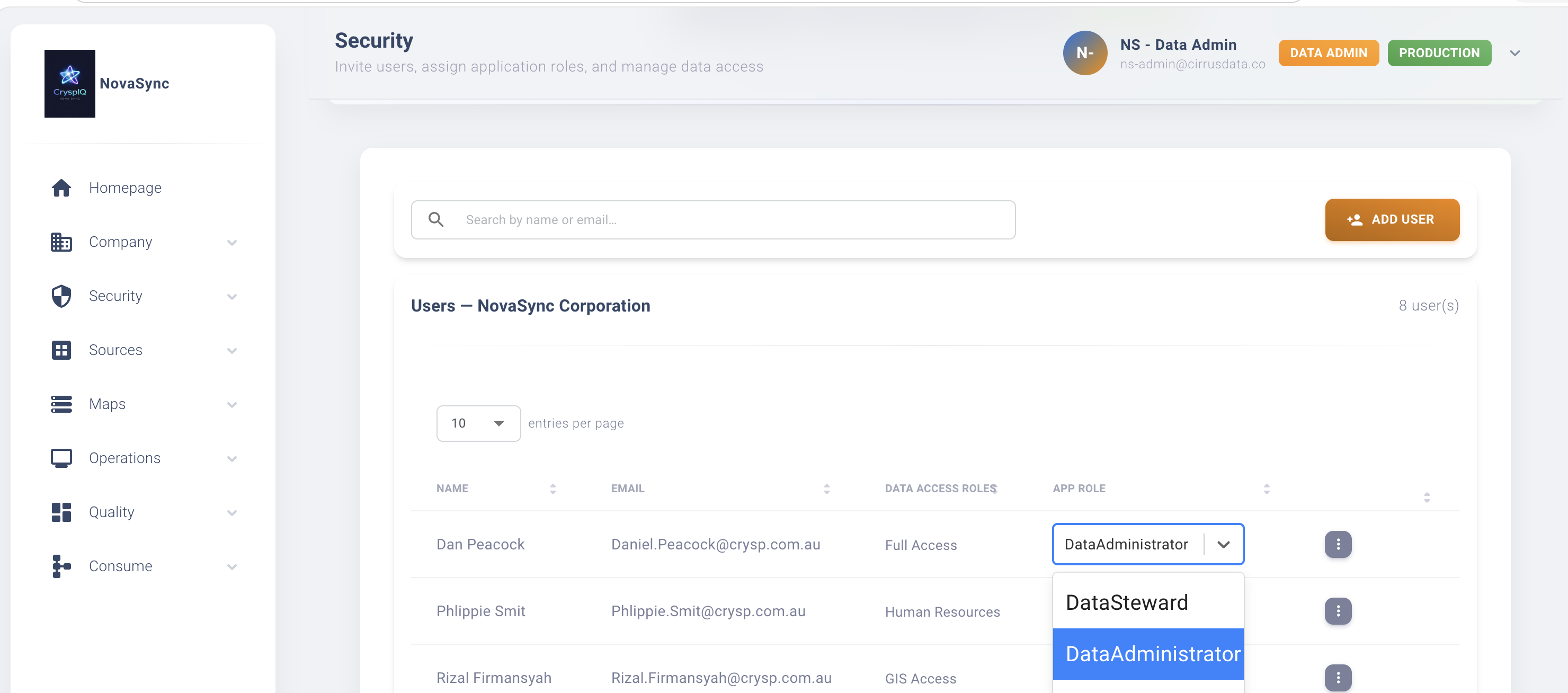
Example Role Assignments
| User Type | Recommended Role |
|---|---|
| Finance analyst | User |
| Reporting manager | User |
| Data owner | Data Steward |
| Data quality reviewer | Data Steward |
| Data engineer | Data Administrator |
| Platform administrator | Data Administrator |
| Company access manager | Company Administrator |
| API service account | Application User |
Edit an Existing User
To update a user:
- Open Company → User Management.
- Find the user in the user list.
- Select the edit action.
- Update the required details.
- Save the changes.
Use this when:
- A user changes role.
- A user requires additional platform responsibilities.
- A user no longer requires administrator access.
Remove a User
To remove a user:
- Open Company → User Management.
- Locate the user.
- Select the delete or remove action.
- Confirm the change.
Removing a user prevents them from accessing CryspIQ®.
Removing a user from CryspIQ® does not necessarily remove them from Microsoft Entra ID.
Role Assignment Guidance
Use the principle of least privilege.
This means users should only receive the access required to perform their role.
| Scenario | Recommended Action |
|---|---|
| User only needs to query data | Assign User role. |
| User manages data quality issues | Assign Data Steward role. |
| User configures sources and maps | Assign Data Administrator role. |
| User manages company access | Assign Company Administrator role. |
| System needs API access | Assign Application User role. |
After the User Is Created
After creating the user, check whether they also require data access.
Depending on your security model, you may need to configure:
- Security Groups
- Contextual Security
- Business Object Security
A functional role allows the user to access CryspIQ® features. It does not automatically grant access to all data.
Related Guides
- Security Groups
- Contextual Security
- Business Object Security /docs/guides/security/ManageDataAccess
Troubleshooting
User cannot log in
Check that:
- The user exists in Microsoft Entra ID.
- The user has been added to CryspIQ®.
- The user has been assigned a valid functional role.
- The user is using the correct organisation account.
User can log in but cannot see expected screens
Check the user’s functional role.
For example, a standard User will not see the same administration screens as a Data Administrator.
User can access a screen but cannot see data
Check data security.
The user may need to be assigned to the correct security group or contextual security rule.