Manage Defaults
The Defaults page allows Data Administrators to manage default values that can be applied during the mapping process.
Defaults help enrich incoming data where information is missing and ensure data is standardised before it enters the CryspIQ® Enterprise Data Model.
Defaults are an important part of the CryspIQ® methodology because they help create consistent, meaningful and AI-ready data.
Overview
A default provides a value when the source system does not supply one.
Common uses include:
- Filling missing values
- Standardising source data
- Assigning business context
- Supporting governance requirements
- Improving reporting consistency
- Improving AI and analytics outcomes
Defaults are applied automatically during data processing through Message Maps.
Why Defaults Matter
Many source systems contain incomplete or inconsistent data.
Examples include:
| Source Field | Source Value |
|---|---|
| Country | Blank |
| Status | Null |
| Business Function | Missing |
| Currency | Not Provided |
Without defaults:
Missing Data
      ↓
Inconsistent Reporting
      ↓
Poor Analytics
      ↓
Reduced AI Accuracy
With defaults:
Missing Data
      ↓
Apply Default
      ↓
Consistent Enterprise Data
      ↓
Trusted Reporting and AI
Examples of Defaults
Country
If the source system does not provide a country:
Australia
may be applied.
Status
If a status is missing:
Unknown
may be assigned.
Business Function
If no function is supplied:
Finance
may be assigned.
Source System
Where required:
Microsoft Dynamics CRM
may be populated automatically.
When Are Defaults Used?
Defaults are applied during the Message Mapping process.
The processing flow is:
Source Data
      ↓
Message Map
      ↓
Apply Defaults
      ↓
Apply Methods
      ↓
Apply Data Quality Rules
      ↓
CryspIQ® Enterprise Data Model
Defaults are typically applied before data quality validation occurs.
Before You Start
Before creating a default:
- You must have Data Administrator access.
- The Source Message should exist.
- The Message Map should exist.
- You should understand the business purpose of the default value.
- You should confirm the default aligns with organisational standards.
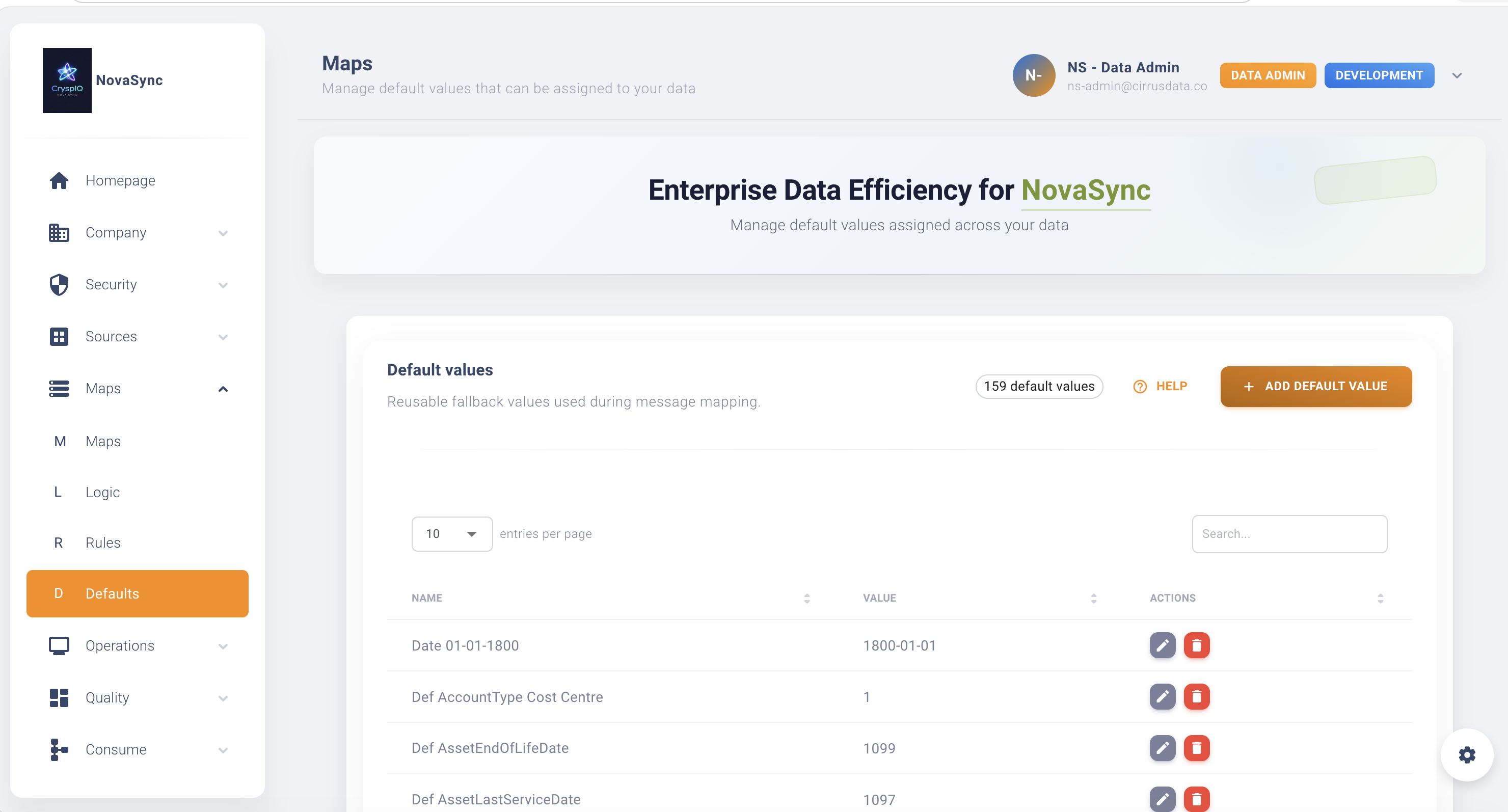
Navigate to Defaults
From the main menu navigate to:
Maps → Defaults
The Defaults page displays all configured defaults available for use within Message Maps.
Create a New Default
To create a new default:
- Open Maps → Defaults.
- Select Add Default.
- Enter a Default Name.
- Enter a Description.
- Specify the Default Value.
- Save the default.
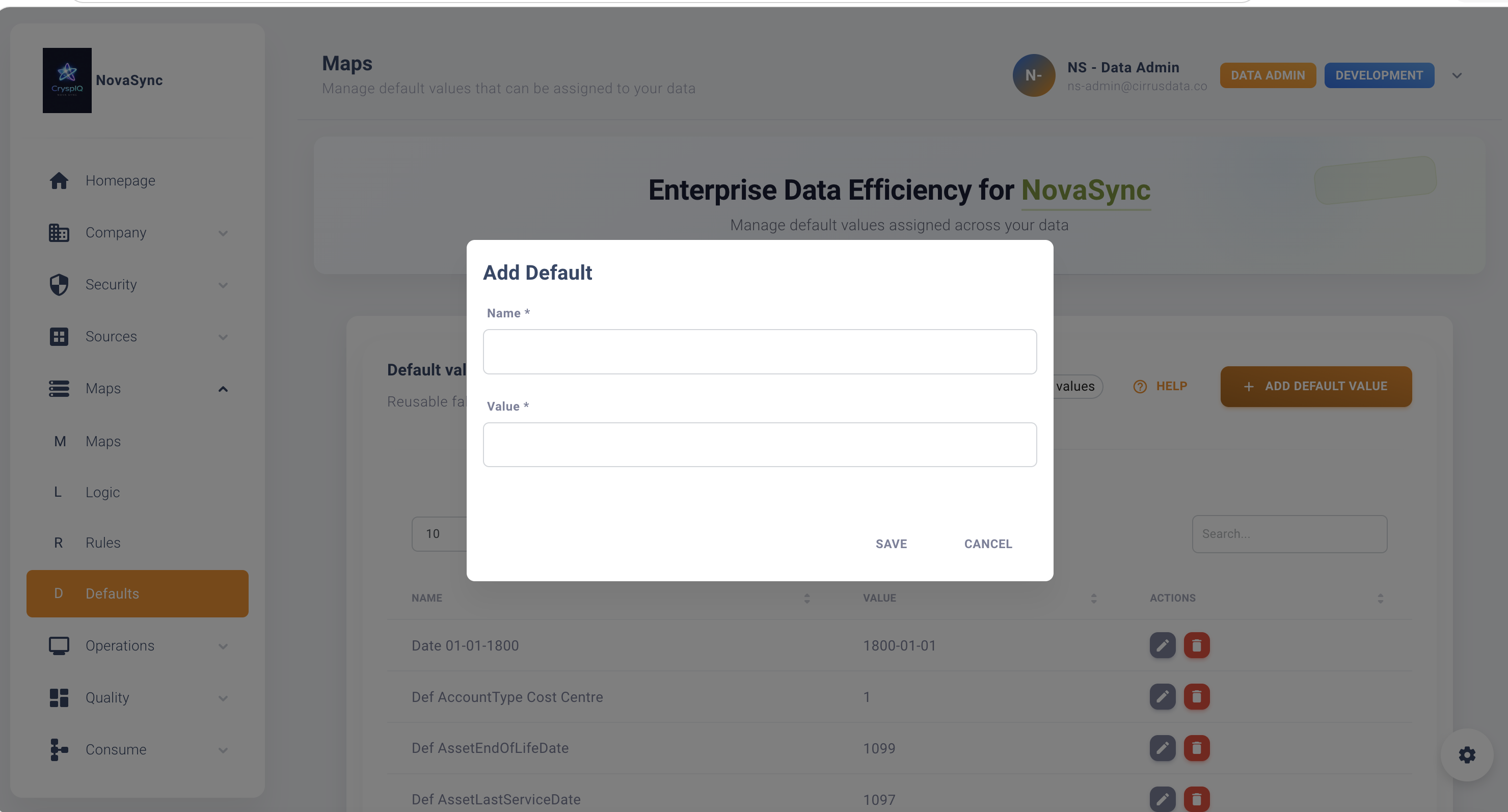
After saving, the default becomes available for use in Message Maps.
Default Name
Choose a meaningful name that describes the purpose of the default.
Good examples:
Default Country
Default Currency
Default Status
Default Business Function
Avoid:
Test
Default1
NewDefault
Description
Use the description to explain:
- Why the default exists
- When it should be used
- What value will be applied
Example:
Assigns Australia when a source record does not contain a country value.
Default Value
The default value is the value CryspIQ® will insert when the mapping logic requires it.
Examples:
Australia
Unknown
Finance
Active
AUD
Applying Defaults to a Message Map
Once created, defaults can be assigned to target fields within a Message Map.
Example:
| Source Field | Target Field | Default |
|---|---|---|
| Country | Country | Australia |
| Status | Status | Active |
| Currency | Currency | AUD |
When the source value is missing, CryspIQ® automatically applies the configured default.
View Existing Defaults
To review a default:
- Open Maps → Defaults.
- Locate the default.
- Open the record.
Use this when:
- Reviewing mapping behaviour
- Investigating processing outcomes
- Confirming standardisation rules
Edit a Default
To modify a default:
- Open Maps → Defaults.
- Locate the default.
- Select Edit.
- Update the required values.
- Save the changes.
Typical updates include:
- Changing the default value
- Updating descriptions
- Aligning with new business standards
Changing a default may affect future data processing and reporting outcomes.
Review Message Maps before making significant changes.
Delete a Default
To delete a default:
- Open Maps → Defaults.
- Locate the default.
- Select Delete.
CryspIQ® prevents deletion if the default is currently being used.
In-Use Validation
Defaults assigned to active Message Maps cannot be deleted.
Example:
Delete Failed

Default is currently being used by one or more Message Maps.
The default must first be removed from all active mappings before it can be deleted.
This protects existing processing configurations from being broken accidentally.
Finding Where a Default Is Used
Before deleting a default, review:
- Message Maps
- Target fields
- Processing rules
This allows administrators to understand the impact before removing the configuration.
Examples of Common Defaults
Country
| Condition | Default |
|---|---|
| Missing Country | Australia |
Currency
| Condition | Default |
|---|---|
| Missing Currency | AUD |
Status
| Condition | Default |
|---|---|
| Missing Status | Active |
Business Function
| Condition | Default |
|---|---|
| Missing Function | Finance |
Source System
| Condition | Default |
|---|---|
| Source Missing | Dynamics CRM |
Best Practices
Use Defaults Sparingly
Only apply defaults where a sensible business value exists.
Avoid hiding data quality issues through excessive use of defaults.
Align to Enterprise Standards
Ensure defaults reflect approved business terminology.
For example:
Use:
Australia
instead of:
AUS
AU
unless organisational standards require those values.
Document Business Purpose
Every default should have a clear description explaining why it exists.
Review Defaults Regularly
Business requirements change over time.
Review defaults periodically to ensure they remain appropriate.
Prefer Source Data Where Available
Defaults should supplement source data, not replace it.
Where reliable source data exists, it should always take precedence.
Troubleshooting
Default Not Applied
Check:
- The default has been assigned to the Message Map.
- The target field is configured correctly.
- Processing completed successfully.
Unexpected Value Appears
Review:
- Assigned defaults
- Mapping configuration
- Preparation methods
- Source data values
Cannot Delete Default
Check whether:
- The default is assigned to a Message Map.
- The default is referenced by active processing rules.
Remove dependencies before attempting deletion.
Reporting Results Look Incorrect
Review:
- Default values
- Mapping logic
- Source data quality
- Business rules
Relationship to Methods and Data Quality
Defaults work alongside other mapping components.
| Component | Purpose |
|---|---|
| Defaults | Supply missing values |
| Methods | Prepare and enrich data |
| Data Quality Rules | Validate incoming data |
| Message Maps | Apply business context |
Together these components create governed, trusted enterprise data.
Related Guides
Next Steps
After creating a default:
- Assign it to a Message Map.
- Test the mapping process.
- Validate the resulting data.
- Confirm reporting and analytics outcomes.
- Review data quality metrics.
Defaults help transform incomplete source data into consistent, governed and business-ready information within CryspIQ®.