Load Operations
The Load Operations page provides visibility into the final stage of the CryspIQ® data processing pipeline.
The Load service is responsible for importing mapped and validated data into the CryspIQ® Enterprise Data Model.
Unlike extraction and mapping, failures at this stage are relatively uncommon because most validation and transformation activities have already been completed.
The primary responsibility of the Data Administrator is to monitor load activity, review any failures and ensure data is being loaded successfully.
Overview
The Load service is the final step in the CryspIQ® processing pipeline.
Source Data
      ↓
Dynamics Connector
      ↓
Message Mapping
      ↓
Defaults
      ↓
Methods
      ↓
Data Quality Rules
      ↓
Business Context
      ↓
Load Service
      ↓
CryspIQ® Enterprise Data Model
Once records have successfully passed through Mapper processing, they are ready to be loaded into the Enterprise Data Model.
Event-Driven Processing
The Load service operates automatically.
Processing begins whenever a mapped file is received from the Mapper service.
Important
The Load service is file watcher driven.
There is:
- No Schedule
- No Pause Schedule
- No Resume Schedule
As soon as a valid mapped file arrives, processing begins automatically.
Screen Overview
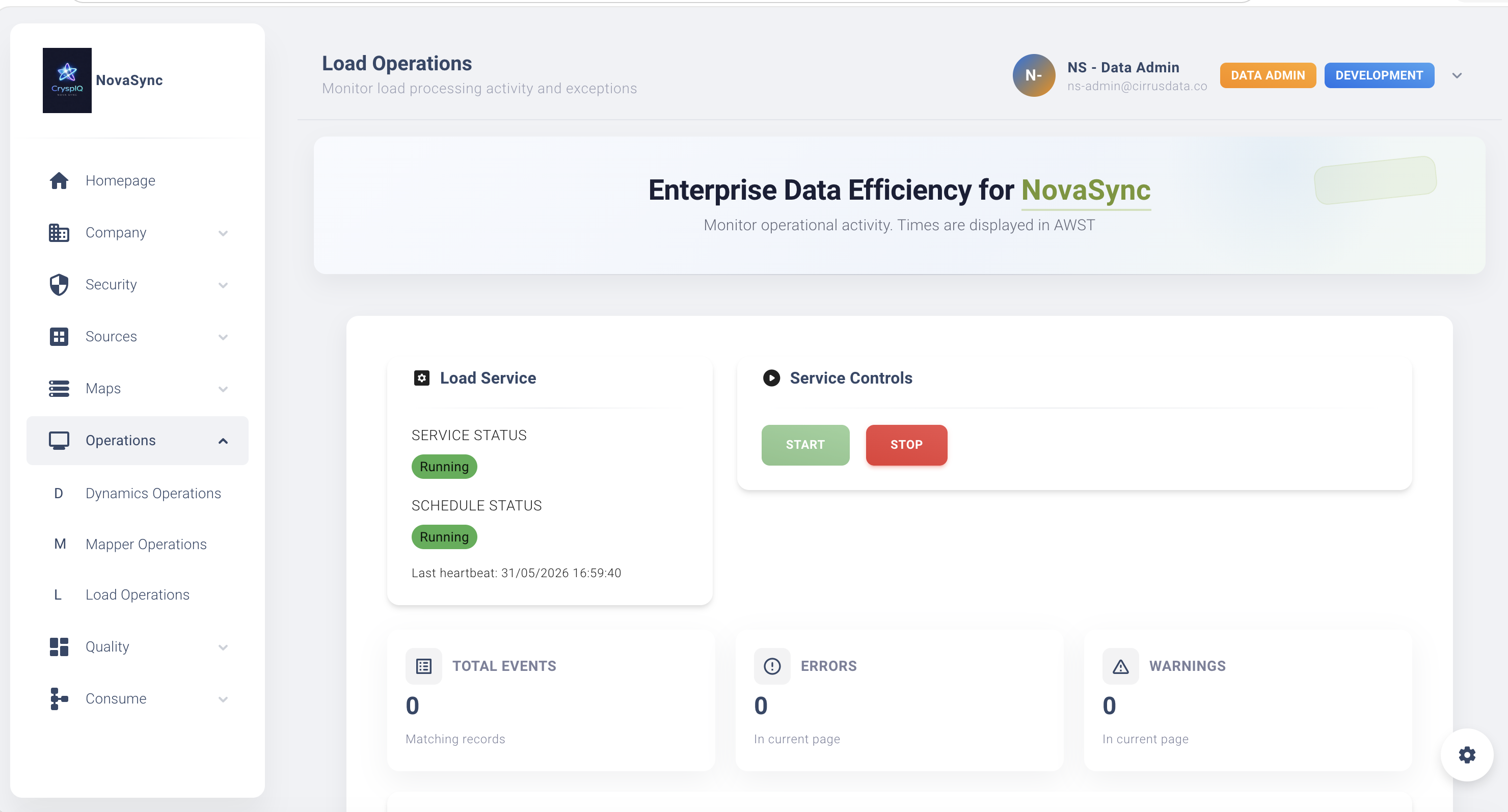
Service Status
Displays the current state of the Load service.
Possible values:
| Status | Description |
|---|---|
| Running | Service operating normally |
| Stopped | Service not running |
| Starting | Service starting |
| Stopping | Service shutting down |
Service Controls
Administrators can control the Load service when required.
Available actions:
| Action | Description |
|---|---|
| Start | Starts the Load service |
| Stop | Stops the Load service |
| Restart | Restarts the Load service |
In normal operation, the service should remain running continuously.
Last Heartbeat
Displays the most recent successful communication from the Load service.
A stale heartbeat may indicate:
- Service outage
- Infrastructure issue
- Database connectivity problem
- Processing interruption
Statistics
Provides operational metrics including:
- Total Runs
- Successful Loads
- Errors
- Warnings
- Records Loaded
- Processing Duration
These metrics provide a quick assessment of load activity and health.
Monitoring Load Activity
Administrators should regularly review:
Load Success Rates
Confirm records are loading successfully into the Enterprise Data Model.
Monitor:
- Number of successful runs
- Records loaded
- Processing duration
Errors
Although uncommon, errors should be investigated immediately.
Most load failures are caused by:
- Database connectivity issues
- Infrastructure issues
- Unexpected data conditions
- Enterprise Data Model constraints
Warnings
Warnings generally indicate:
- Duplicate records ignored
- Minor processing anomalies
- Performance-related concerns
Warnings do not usually prevent successful loading.
Understanding Load Processing
The Load service performs several activities.
Validate Incoming Records
The service verifies that mapped records are suitable for loading.
Typical checks include:
- Required identifiers present
- Data types valid
- Referential integrity maintained
Apply Enterprise Keys
CryspIQ® establishes relationships between:
- Entities
- Assets
- Locations
- Products
- Services
- Facts
This ensures data remains connected within the Enterprise Data Model.
Write Data to the Enterprise Data Model
Validated records are loaded into the CryspIQ® database.
This data then becomes available for:
- Reporting
- Analytics
- Data Science
- AI
- Natural Language Query
- Operational Dashboards
Maintain Lineage
The Load service maintains lineage information so records can always be traced back to:
- Source system
- Source message
- Source record
- Mapping process
This supports governance and auditability.
Common Load Failures
Load failures are rare but can occur.
Database Connectivity Failure
Symptoms
Load status displays:
Error
Common Causes
- SQL Server unavailable
- Network interruption
- Authentication failure
- Database maintenance activity
Resolution
- Verify database availability.
- Verify network connectivity.
- Verify service credentials.
- Restart the Load service if required.
Referential Integrity Failure
Symptoms
Records fail during loading.
Common Causes
A record references data that does not yet exist.
Examples:
Entity not found
Location not found
Product not found
Service not found
Resolution
- Review the failed record.
- Verify required master or reference data exists.
- Load missing contextual data.
- Reprocess the affected records.
Duplicate Record Detection
Symptoms
Warning messages appear during loading.
Common Causes
The same business key has already been loaded.
Examples:
Invoice already exists
Customer already exists
Asset already exists
Resolution
Review the source data and determine whether:
- The duplicate is expected.
- The source system sent duplicate records.
- An upstream process requires correction.
Infrastructure Failure
Symptoms
The service stops unexpectedly.
Common Causes
- Server outage
- Resource exhaustion
- Service configuration issues
- Operating system updates
Resolution
- Review service logs.
- Review server health.
- Restart the service.
- Monitor subsequent processing.
Recovering From Load Errors
When load failures occur:
Typical Recovery Process
- Stop the Load service.
- Investigate the error.
- Correct the underlying issue.
- Verify Mapper processing completed successfully.
- Restart the Load service.
- Reprocess the affected files.
- Monitor the results.
In most cases, the issue originates earlier in the processing pipeline.
Monitoring Best Practices
Daily
- Review service status.
- Verify heartbeat activity.
- Confirm successful loads.
- Review any warnings.
Weekly
- Review load volumes.
- Review failed runs.
- Investigate recurring warnings.
Monthly
- Review service performance.
- Review processing trends.
- Review operational logs.
Troubleshooting Checklist
When investigating Load issues:
Step 1
Verify the Load service is running.
Step 2
Review the latest load run.
Step 3
Review load logs.
Step 4
Verify database connectivity.
Step 5
Review Mapper processing.
Step 6
Review failed records.
Step 7
Correct the issue.
Step 8
Restart the service if required.
Step 9
Reprocess the affected data.
Relationship to Other Services
The Load service depends on successful completion of upstream processes.
Dynamics Operations
        ↓
Mapper Operations
        ↓
Load Operations
If recurring load issues occur, administrators should also review:
- Dynamics Operations
- Mapper Operations
- Message Maps
- Data Quality Rules
Related Guides
- Dynamics Operations
- Mapper Operations
- Create Message Maps
- Methods
- Data Quality Rules
- Data Quality Dashboard
Next Steps
Once records have been successfully loaded:
- Review Data Quality dashboards.
- Validate enterprise data completeness.
- Run queries against the loaded data.
- Confirm reporting outputs.
- Verify data is available for analytics and AI use cases.
The Load service is the final step in transforming source data into trusted, governed and enterprise-ready information within CryspIQ®.