Configure Access Control
CryspIQ® uses Microsoft Entra ID security groups, called access groups, to protect enterprise data and ensure users only have access to information relevant to their role.
The access groups live in the CryspIQ® Microsoft Entra ID tenant, not in your organisation's own directory. You create them and manage who belongs to them inside CryspIQ®, so there's nothing to set up in your own Entra admin centre. Your people sign in with their own work accounts, as invited users of the CryspIQ® tenant.
This guide explains how to create access groups, add people to them and grant them access to data.
If CryspIQ® is deployed in your own private cloud, it uses your organisation's own Microsoft Entra ID tenant instead. Your access groups and users are held in your own directory, and your people sign in directly rather than by invitation. Everything you do inside CryspIQ® in this guide stays the same.
Before You Start
Before configuring access control, ensure:
- The Microsoft Entra ID connection has been confirmed: your organisation allows its people to accept an invitation to the CryspIQ® tenant, and they can sign in with their own work accounts.
- The required users have been added in User Management, which invites them to the CryspIQ® tenant.
- The access groups you need have been designed, and approved by the Data Owner.
- You have Data Administrator or Data Steward access within CryspIQ®. The Company Administrator can invite users but cannot manage access-group membership.
Access Control determines what data a user can see.
Functional Roles determine what features a user can access.
These are configured separately within CryspIQ®.
Understanding Access Control
CryspIQ® secures enterprise data using Microsoft Entra ID security groups, called access groups.
Access is denied by default. Users are assigned to one or more access groups, and they can see only the data those groups have been granted.
Examples include:
| Business Function | Example Security Group |
|---|---|
| Finance | FINANCE_USERS |
| Human Resources | HR_USERS |
| Operations | OPERATIONS_USERS |
| Executive Team | EXECUTIVE_USERS |
| Data Administrators | DATA_ADMINISTRATORS |
CryspIQ® stores each group under your company's own prefix in the CryspIQ® tenant, so your groups are kept separate from every other organisation's. You only ever see your own.
Navigate to Access Control
From the main menu, go to:
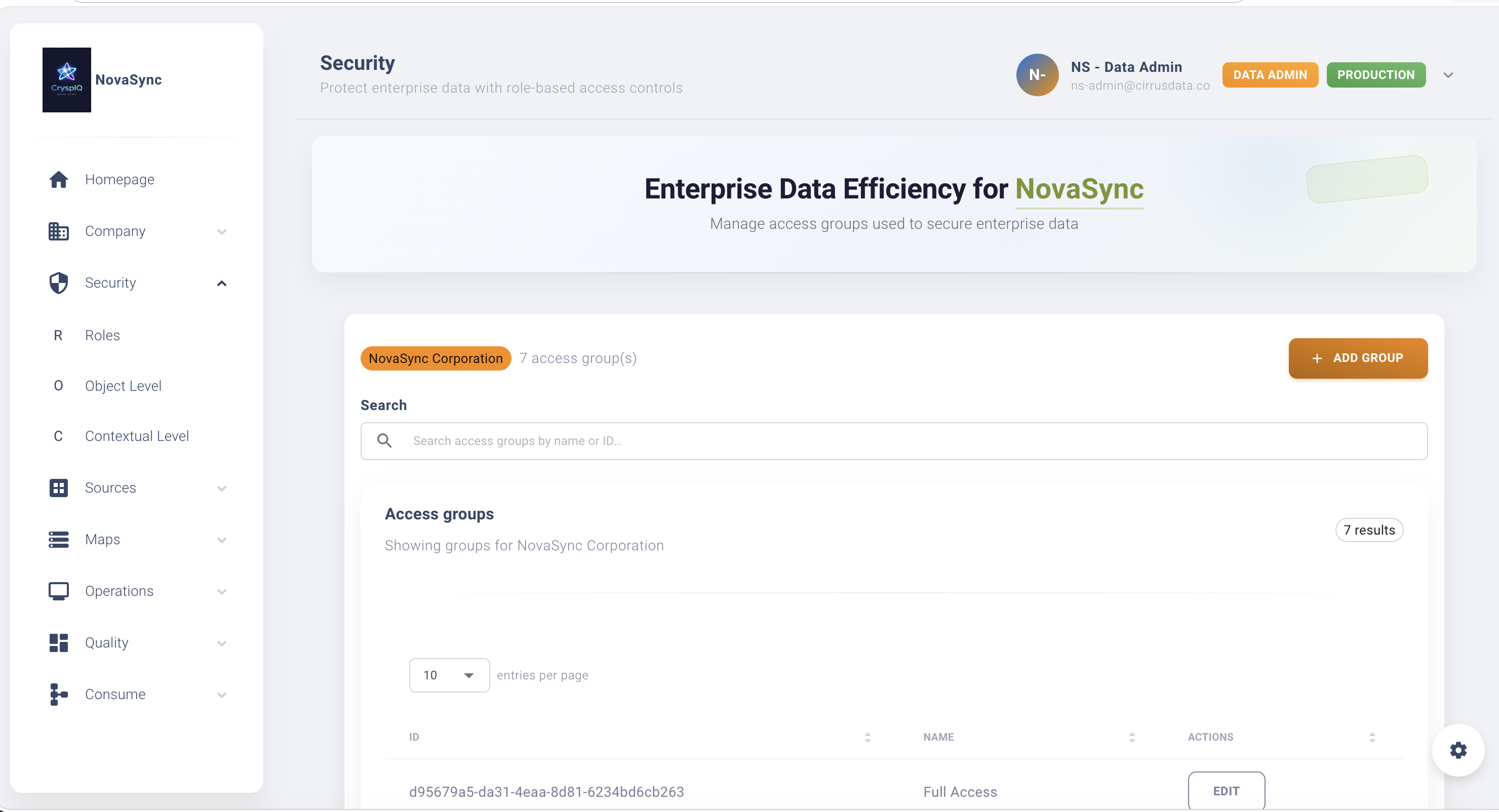
Security → Access Control
The Access Control page displays all security groups currently configured within CryspIQ®.
Create an Access Group
Access groups are created inside CryspIQ®. You don't need access to any Microsoft Entra admin centre.
- Open Security → Access Control.
- Select Add Group.
- Enter the access group name.
- Select Save.
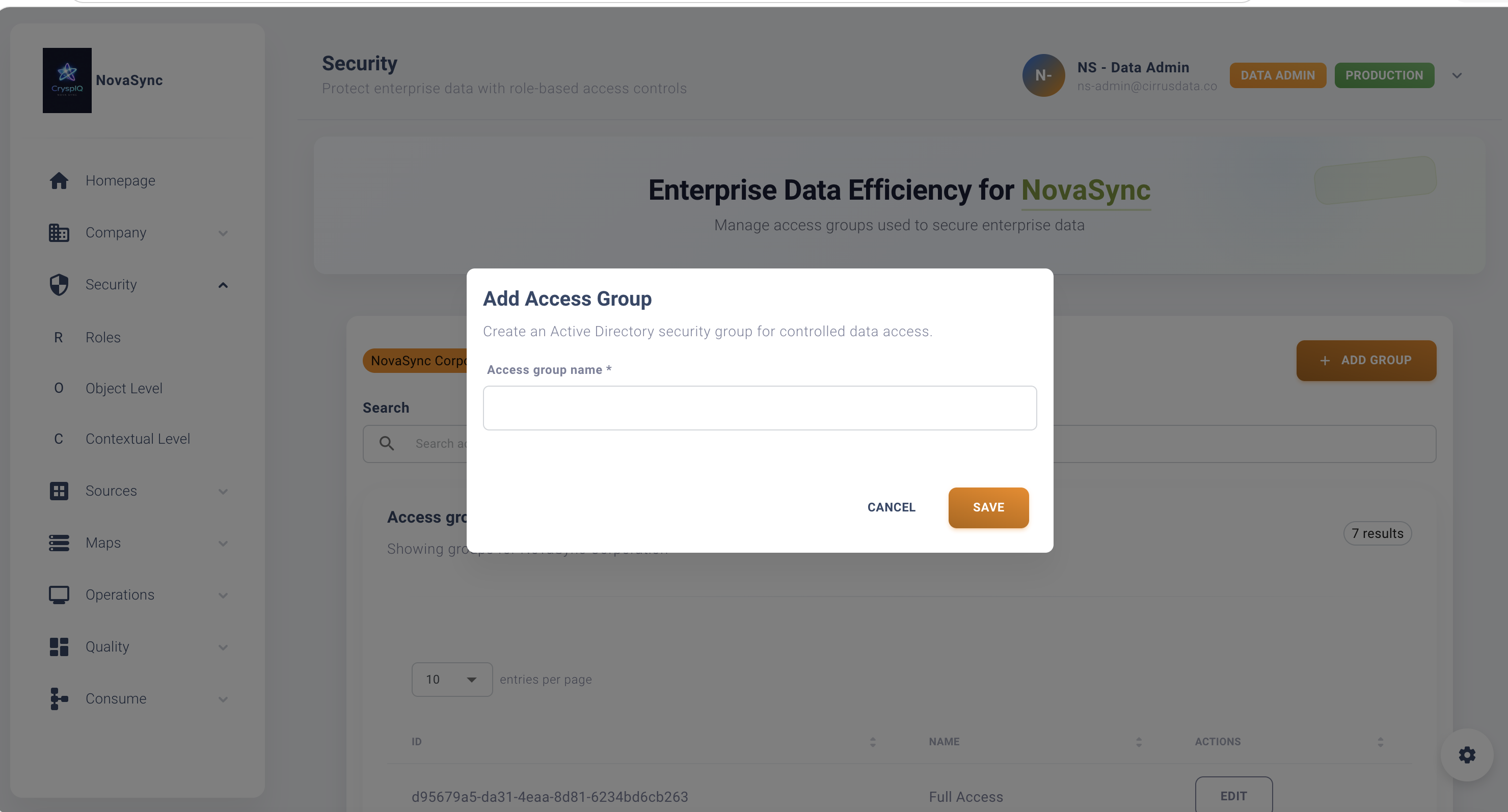
CryspIQ® creates the group in the CryspIQ® Microsoft Entra ID tenant under your company's prefix. It's then available for use throughout CryspIQ®.
Example
FINANCE_USERS
Use business-oriented group names that clearly identify the purpose of the group.
Add People to an Access Group
Group membership is managed in CryspIQ® by a Data Administrator or Data Steward — not by the Company Administrator. The Company Administrator can invite users and assign functional roles, but cannot add people to access groups.
- Open Settings → Users.
- Select the user.
- Open Edit data access roles from the row menu.
- Choose the access group and save.
The user can see the data granted to that group straight away. To take access away, remove them from the group in the same place.
Assign Data Access
After a security group has been added, it can be assigned to specific data assets.
Examples include:
- Business Objects
- Facts
- Dimensions
- Contextual Security Rules
- Data Domains
Only users belonging to the assigned access group will be able to access the protected data.
Example Security Model
Finance Team
| Security Group | Access |
|---|---|
| FINANCE_USERS | Finance facts, reports and KPIs |
| FINANCE_MANAGERS | Finance reporting and management metrics |
| CFO_USERS | Executive reporting and strategic metrics |
Operations Team
| Security Group | Access |
|---|---|
| OPERATIONS_USERS | Operational reporting |
| OPERATIONS_MANAGERS | Operational reporting and management KPIs |
This structure allows security to be managed at a business level rather than individually for each user.
Review Security Group Membership
To review access:
- Open Security → Access Control.
- Select the security group.
- Review assigned users.
- Review assigned data permissions.
Regular reviews help ensure users only have access to information required for their role.
Security Best Practices
Use Business-Based Groups
Create groups that represent business functions.
Good examples:
FINANCE_USERS
OPERATIONS_USERS
HR_USERS
EXECUTIVE_USERS
Avoid creating groups for individual users.
Apply Least Privilege
Only grant access required for a user to perform their role.
Avoid broad access unless there is a genuine business requirement.
Review Access Regularly
Periodically review:
- Security group membership
- Assigned permissions
- Business ownership
This helps maintain security and compliance.
Separate Administrative Access
Administrative users should have separate administrator groups.
Examples:
DATA_ADMINISTRATORS
SECURITY_ADMINISTRATORS
This improves governance and reduces risk.
Troubleshooting
User Cannot See Data
Check:
- The user has been added in User Management and has accepted their invitation.
- The user belongs to the correct access group.
- The access group has been assigned to the required data.
User Can Log In but Sees No Results
This usually indicates that:
- The user has access to CryspIQ®.
- The user does not have access to the requested data.
Review the user's access groups and the contextual security settings.
User Cannot Sign In
Confirm:
- The user has accepted their invitation to the CryspIQ® tenant.
- Your organisation allows its people to accept invitations from other Microsoft Entra ID tenants. Your IT team controls this in your own tenant's external collaboration settings.
- The user's own work account is still active.
Someone Has Left Your Organisation
When a person leaves, their own work account is disabled and they can no longer sign in. They remain in the CryspIQ® tenant and in their access groups until they're removed. Remove them in User Management as part of your leaver process and your regular access review.
Related Guides
Next Steps
After configuring access control:
- Create or update users.
- Add users to the appropriate access groups.
- Configure contextual security where required.
- Validate that users can only access authorised data.
CryspIQ® automatically applies security controls whenever users query, view or consume data.