Configure Business Object Security
CryspIQ® enables organisations to protect business object and factual data at a field level using Business Object Security.
Business Object Security allows administrators to assign Microsoft Entra ID security groups to specific business objects, facts or data elements within the CryspIQ® enterprise data model.
CryspIQ® uses Microsoft SQL Server Dynamic Data Masking to protect sensitive values. By default, no security groups are granted access. Access must be explicitly assigned.
What is Business Object Security?
Business Object Security protects sensitive business data elements associated with a business object or fact.
Examples include:
| Business Object / Fact | Protected Data Element |
|---|---|
| Employee | Salary Amount |
| Supplier | Bank Account Details |
| Contract | Contract Value |
| Asset | Asset Valuation |
| Incident | Sensitive Investigation Notes |
This allows CryspIQ® to protect data at a detailed field level while still allowing authorised users to work with the information they need.
How Business Object Security Works
CryspIQ® applies field-level protection using SQL Server Dynamic Data Masking.
By default:
- Protected fields are masked.
- No security groups are granted access.
- Users must belong to an authorised Microsoft Entra ID security group to view unmasked values.
- Users without access will see masked values.
Example
A protected value may appear as:
XXXXXX
instead of:
750000
Only authorised users belonging to approved security groups can view the unmasked value.
Before You Start
Before configuring Business Object Security, ensure:
- Microsoft Entra ID security groups already exist.
- Security groups have been added to CryspIQ®.
- Business objects, facts or data elements are available in CryspIQ®.
- You have Data Administrator permissions.
Business Object Security follows a deny by default model.
No security group receives access until access is explicitly assigned.
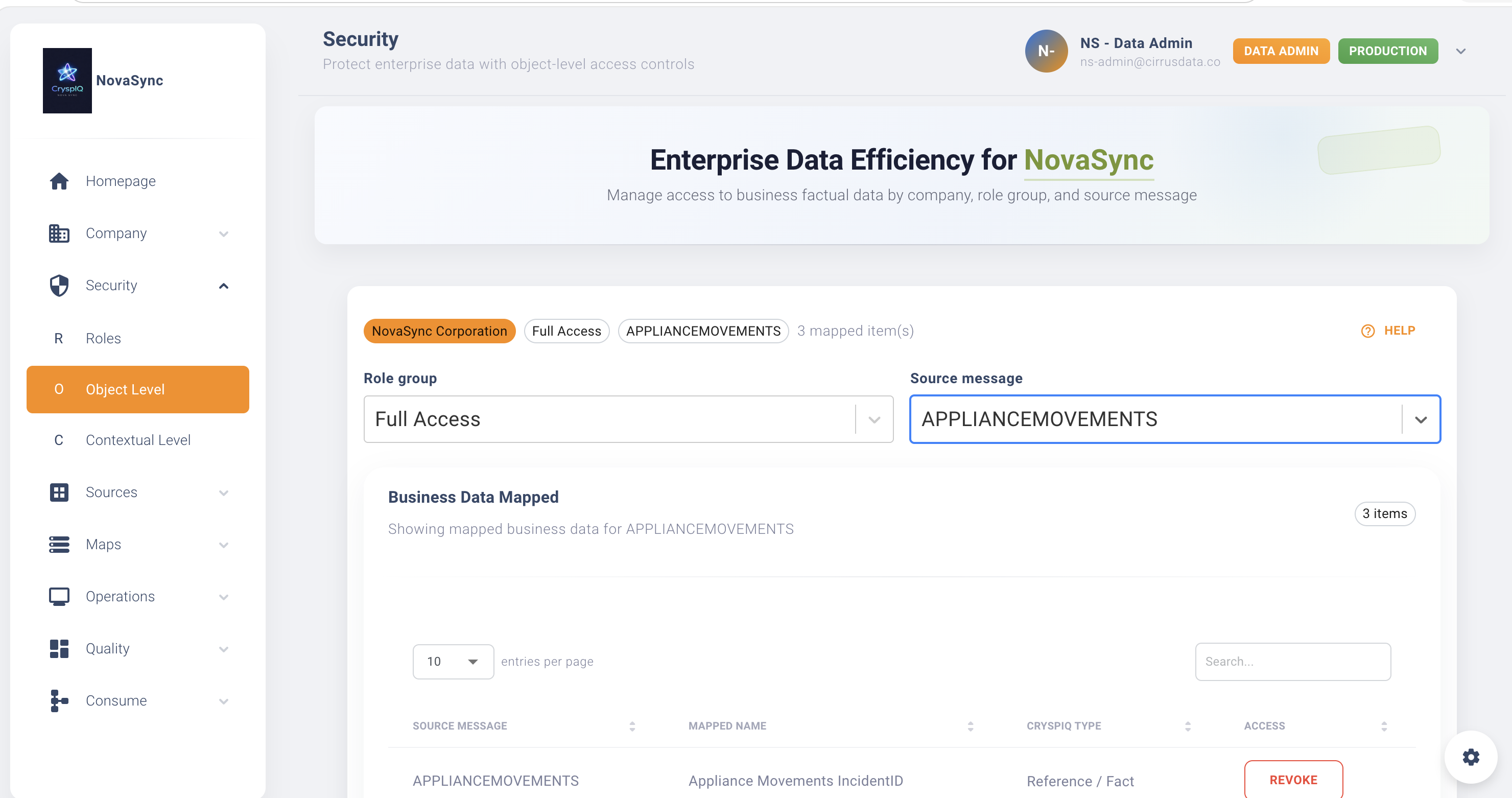
Navigate to Business Object Security
From the main menu navigate to:
Security → Business Object Security
The Business Object Security page displays business objects, facts or field-level data elements available for protection.
Assign Security Groups
To grant access to a protected business object or fact field:
- Open Security → Business Object Security.
- Locate the business object, fact or data element.
- Select Edit Security.
- Choose the Microsoft Entra ID security group.
- Save the configuration.
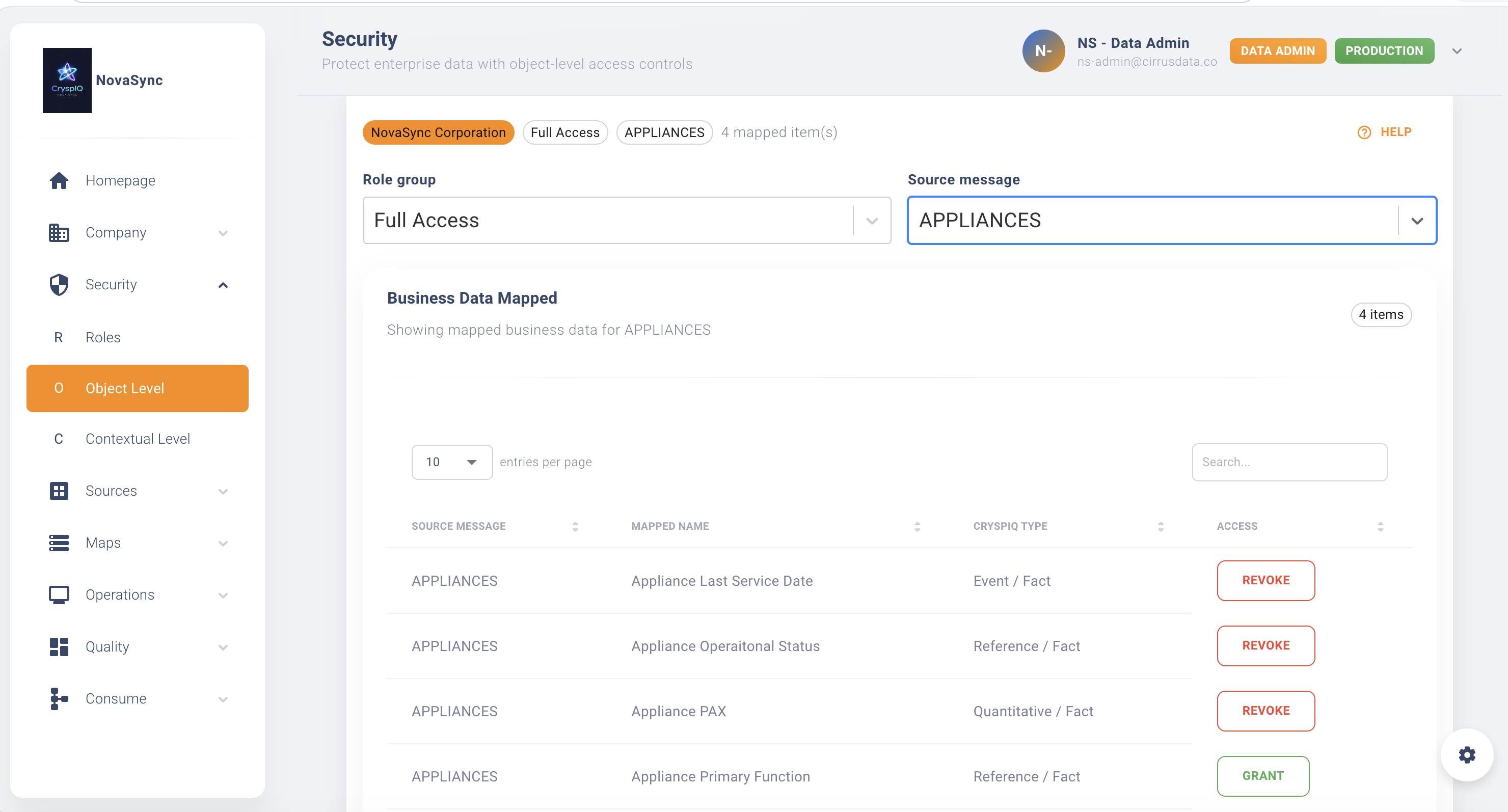
Only users belonging to the selected security groups will be able to view the unmasked value.
Example Configuration
Contract Value
| Security Group | Access |
|---|---|
| FINANCE_USERS | Allowed |
| EXECUTIVE_USERS | Allowed |
| PROCUREMENT_USERS | Allowed |
| GENERAL_USERS | Denied |
Employee Salary Amount
| Security Group | Access |
|---|---|
| HR_USERS | Allowed |
| PAYROLL_USERS | Allowed |
| EXECUTIVE_USERS | Allowed |
| OPERATIONS_USERS | Denied |
Supplier Bank Account Details
| Security Group | Access |
|---|---|
| FINANCE_USERS | Allowed |
| ACCOUNTS_PAYABLE_USERS | Allowed |
| PROCUREMENT_USERS | Denied |
Business Object Security vs Contextual Security
CryspIQ® supports multiple layers of data protection.
| Security Type | Protects | Example |
|---|---|---|
| Business Object Security | Business object or fact-level fields | Contract value, salary amount, supplier bank account |
| Contextual Security | Contextual attributes and descriptive fields | Date of birth, personal email, mobile number |
| Security Groups | Dataset or business access boundaries | Finance, HR, Operations |
| Functional Roles | Screens and features | Data Administrator, Data Steward, User |
Use Business Object Security when the sensitive value is part of the business object or factual data being consumed.
Review Existing Assignments
To review current protection:
- Open Security → Business Object Security.
- Select the business object, fact or field.
- Review assigned security groups.
- Confirm the access remains appropriate.
Regular reviews help ensure sensitive data remains protected as organisational responsibilities change.
Best Practices
Protect High-Risk Business Data
Apply Business Object Security to data such as:
- Financial amounts
- Payroll values
- Contract values
- Supplier bank details
- Sensitive customer identifiers
- Commercially sensitive metrics
Use Business-Based Security Groups
Assign access using groups aligned to business responsibility.
Good examples:
FINANCE_USERS
HR_USERS
PAYROLL_USERS
EXECUTIVE_USERS
ACCOUNTS_PAYABLE_USERS
Avoid assigning access through individual user-based groups.
Apply Least Privilege
Only grant access when the user has a genuine business need.
If a group does not require access to the unmasked value, do not assign it.
Review Sensitive Access Regularly
Review access to high-risk fields periodically.
Recommended review points include:
- Staff role changes
- Department restructures
- Audit preparation
- New reporting use cases
- Regulatory or compliance changes
Troubleshooting
User Sees Masked Values
Check:
- The user belongs to the correct Microsoft Entra ID security group.
- The security group has been added to CryspIQ®.
- The security group has been assigned to the business object or fact field.
- The user has logged out and back in after group changes.
User Can Access the Dataset but Not the Field
This usually means dataset access has been granted, but field-level access has not.
Review:
- Business Object Security assignments
- Contextual Security assignments
- Microsoft Entra ID group membership
User Can See a Sensitive Field Unexpectedly
Immediately review:
- Assigned security groups
- Microsoft Entra ID group membership
- Business Object Security configuration
- Any overlapping access groups
Follow your organisation’s security and compliance procedures where required.
Security Model Summary
| Security Layer | Purpose |
|---|---|
| Functional Roles | Controls what screens and features a user can access |
| Access Control | Controls access to datasets and business areas |
| Business Object Security | Controls access to protected field-level business or factual data |
| Contextual Security | Controls access to protected contextual attributes |
| SQL Server Data Masking | Masks protected values for unauthorised users |
Together these controls help ensure users can work with the data they need while sensitive business information remains protected.
Related Guides
Next Steps
After configuring Business Object Security:
- Confirm the correct security groups are assigned.
- Test access using representative user accounts.
- Confirm unauthorised users see masked values.
- Confirm authorised users can view unmasked values.
- Document ownership and review schedules.
CryspIQ® automatically applies Business Object Security whenever protected data is queried, viewed or consumed.